A Suno song link is useful.
A Suno artist page is better.
If you are making AI music under a project name, artist identity, brand, or creative concept, scattered links can start to feel limiting. One song lives in a message. Another lives in a social post. Another is buried in a feed. None of it feels like a real home.
A dedicated artist page changes that.
It gives your Suno songs context. It gives visitors a place to listen. It gives your project a shape.
If you use WordPress, you can build a simple Suno artist page and publish public Suno songs with IW Player for Suno, a free WordPress plugin from Island Workflow. If you are starting with one track first, read how to add a Suno player to WordPress.
What Is a Suno Artist Page?
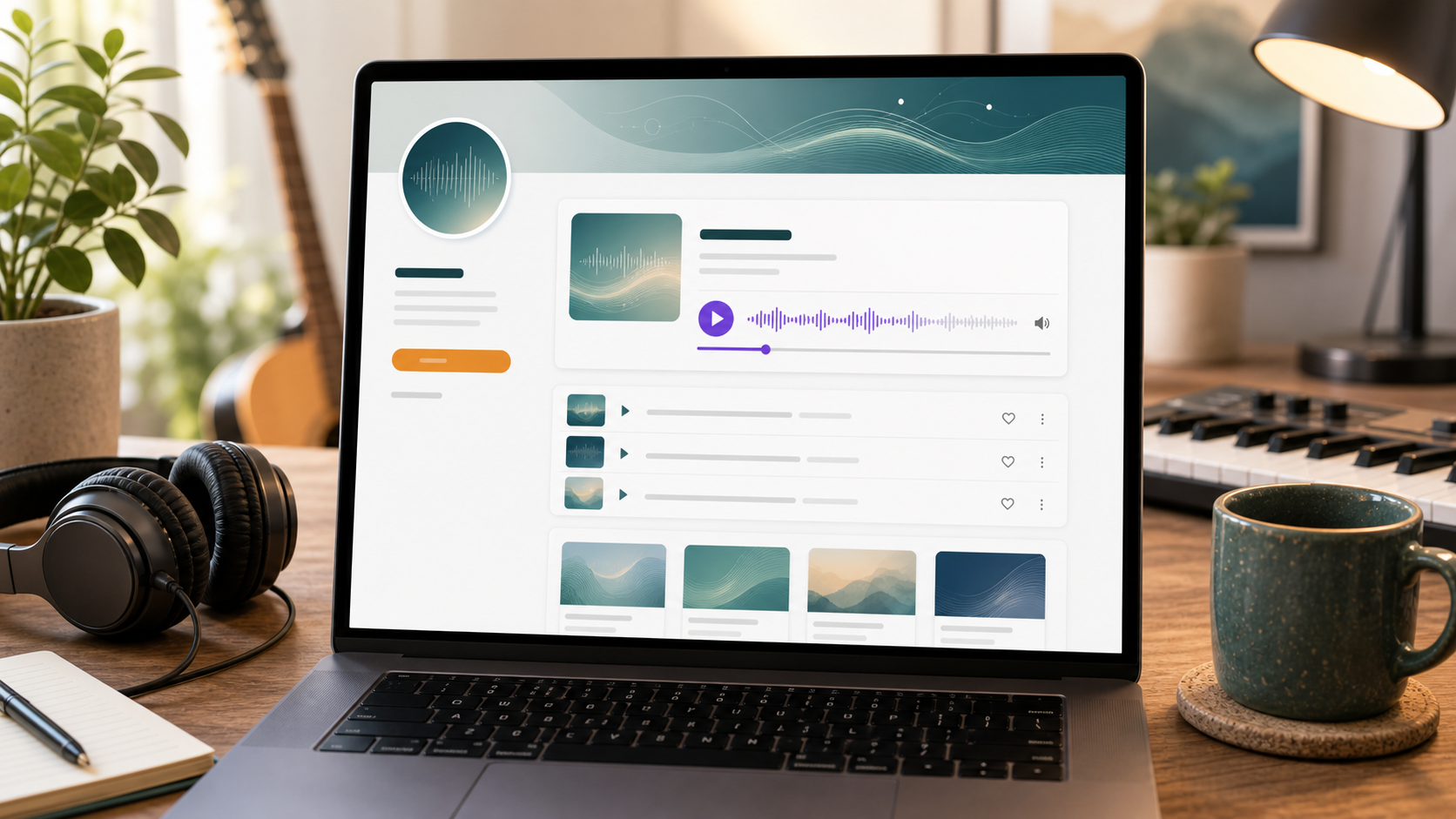
A Suno artist page is a dedicated page on your website for your AI music project.
It can be simple. It does not need to look like a major-label artist site. The goal is to collect the most important pieces of your music identity in one place.
A good Suno artist page usually includes:
- Artist or project name
- Short bio or concept
- Featured public Suno songs
- Playlist or release section
- Cover art or visual style
- Links to related songs or pages
- Email signup or follow option
- Contact or booking button if relevant
The page should answer one basic question for the visitor: what is this project, and why should I listen?
Why Build the Page on WordPress?
WordPress gives you more control than a single shared link or social profile.
On your own site, you decide what appears around the music. You can add a story, lyrics, artwork, project notes, links, and calls to action. You can also connect the artist page to the rest of your site.
That matters if your Suno songs are part of something larger.
For example:
- An AI artist identity
- A music portfolio
- A comedy music project
- A podcast or video soundtrack project
- A brand or jingle demo page
- A playlist or album concept
- A client-facing creative portfolio
A direct Suno link shares a song. A WordPress artist page gives the song a setting.
What You Need Before You Start
Before creating the page, gather the basics.
- A WordPress website
- A public Suno song link
- A short artist or project description
- A few featured songs or playlist ideas
- Artwork, image concepts, or a simple visual style
- A next step for visitors, such as listen, follow, contact, or subscribe
IW Player for Suno is intended for public Suno song links. If a song is private, it is not the right fit for this public publishing workflow.
Step 1: Choose the Artist Page Goal
Do not start by adding everything you have ever made.
Start with the purpose of the page.
Is it meant to introduce an AI artist? Show your best tracks? Share a playlist? Help clients hear your style? Collect emails? Support a single launch?
The goal determines the layout.
For most creators, the best first version is simple:
- Short intro
- One featured song
- A small playlist or selected tracks
- A short bio
- A clear next step
You can expand later.
Step 2: Write a Short Artist Bio
Your bio does not need to be dramatic. It just needs to help people understand the project.
A good Suno artist bio can answer:
- What kind of music is this?
- What mood or genre does it explore?
- Is this a fictional artist, personal project, brand experiment, or portfolio?
- Why are you making it?
- What should listeners expect?
Example:
Dualistic Unity is an AI-assisted music project exploring cinematic indie rock, spoken-word pop, and strange little songs about technology, memory, and being human.
That kind of bio is enough. It gives listeners a frame before they press play.
Step 3: Add Public Suno Songs With a Clean Player
This is where the page becomes a music page instead of just a written profile.
With IW Player for Suno Free, you can add public Suno song links to WordPress and display them in a clean embedded player.
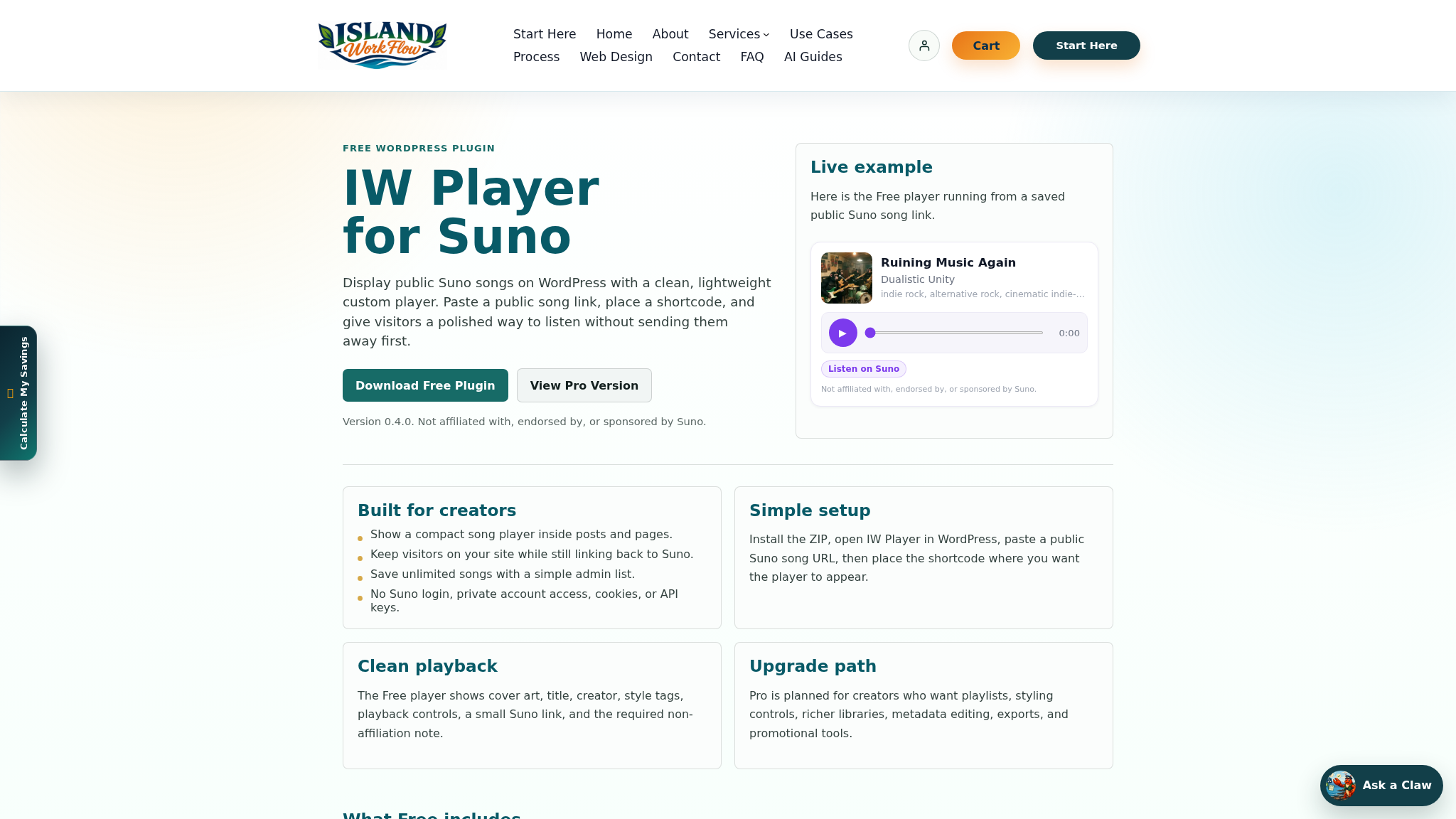
The basic workflow is:
- Make sure the Suno song is public.
- Copy the public Suno song link.
- Add it to WordPress with IW Player for Suno.
- Place the player on your artist page.
- Publish and test the page.
No Suno API key is required for the basic public-link workflow. No Suno login is required for that basic workflow either. For a more focused setup walkthrough, see How to Embed Suno Music on WordPress.
Step 4: Feature the Right Songs
An artist page should not feel like a storage drawer.
Choose songs that represent the project well. If you have many tracks, start with three to five strong examples rather than every experiment.
You might organize them by:
- Featured track
- Latest songs
- Best starting points
- Mood or genre
- Album or playlist concept
- Client examples
- Short-form video hooks
The point is to make listening easy. Too many choices can make the page weaker.
Step 5: Add Context Around the Music
A player lets people listen. Context helps them care.
Add short notes around the songs where useful:
- What inspired the song
- What mood it is meant to create
- Lyrics or chorus excerpt
- Genre notes
- How the song fits the project
- Where listeners should go next
Keep it light. The page should not become a wall of explanation. A few thoughtful lines can make the music feel more intentional.
Step 6: Give Visitors a Next Step
After someone listens, what should they do?
That answer depends on the project.
Good next steps include:
- Join an email list
- Listen to another track
- Contact you
- Follow your project
- Read the story behind the song
- View a portfolio
- Share the page
Do not overload the page with too many buttons. Pick the one or two actions that matter most.
A Simple Suno Artist Page Layout
Here is a practical layout you can use for a first version:
- Hero section: artist name, short tagline, one button
- Featured player: one public Suno song in a clean embedded player
- About section: short bio or project concept
- Playlist section: selected public Suno songs
- Visual section: artwork, mood images, or release cards
- Follow/contact section: email signup, social link, or contact form
That is enough to make the page feel real without turning it into a giant project.
Common Mistakes to Avoid
The biggest mistake is treating the artist page like a link dump.
Avoid:
- Adding every song with no order
- Using only plain links with no context
- Sending visitors away before they understand the project
- Writing a long dramatic bio that says very little
- Forgetting mobile visitors
- Using unclear calls to action
- Pretending the tool is officially affiliated with Suno
The best artist pages are clear, focused, and easy to listen to. If you want a broader promotion checklist, see How to Share Suno Songs Outside of Suno.
Download the Free Plugin
If you want to create a Suno artist page on WordPress, start with IW Player for Suno Free.
It helps creators publish public Suno songs on their own WordPress site with a clean embedded player and a simple public-link workflow.
Download IW Player for Suno Free
A Note About Suno and Public Links
IW Player for Suno works with public Suno song links as they are available today.
Island Workflow actively maintains its tools where there is demand, but third-party platform behavior can change. A plugin can help you publish public Suno songs on WordPress, but it cannot control Suno’s future features, platform changes, media availability, or third-party behavior.
IW Player for Suno is made by Island Workflow. It is not affiliated with, endorsed by, or sponsored by Suno.
Final Thought
If you are making AI music you care about, give it somewhere to live.
A Suno artist page does not need to be complicated. It just needs to make the project feel intentional.
Add a short bio. Feature your strongest public songs. Give people a clean way to listen. Then give them a reason to stay in your world a little longer.
That is the difference between sharing a link and building a music project.
 Island Workflow