
A Suno link is easy to share.
But if you are building a website for your music, a plain link can feel a little unfinished.
Maybe you have an AI artist project. Maybe you are building a portfolio. Maybe you made a song for a client, a podcast intro, a brand idea, or a creative experiment you actually want people to hear.
At that point, you probably do not want your song to live only as a link in a message, feed, or bio page.
You want it to feel like part of your own site.
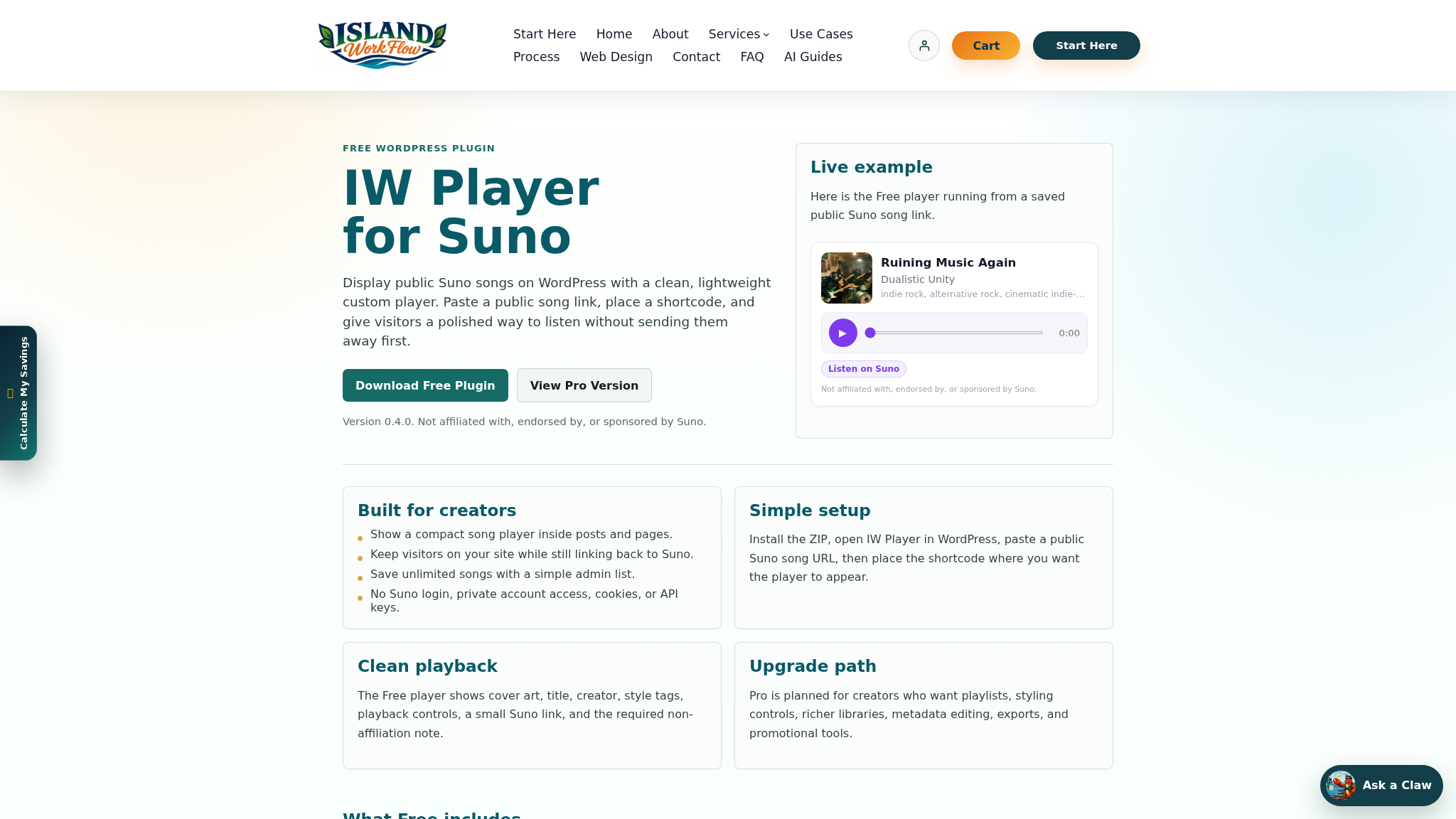
That is where IW Player for Suno helps. It is a free WordPress plugin from Island Workflow that lets you publish public Suno songs on your own WordPress site with a clean embedded player.
Why Add a Suno Player to WordPress?
When someone lands on your website, they are already in your world.
They might be reading about your project, looking at your portfolio, checking out your services, or deciding whether to follow your work. Sending them away immediately can interrupt that moment.
A Suno player on your WordPress site lets visitors listen without leaving the page first.
That means you can place the song beside the context that matters:
- The story behind the song
- Lyrics or prompt notes
- Cover artwork
- A short artist bio
- A playlist
- A contact form
- A newsletter signup
- Related posts
- A call to action
The player is not just a technical feature. It changes how the song is presented.
A link says, “go listen somewhere else.”
A player says, “this belongs here.”
The Free Plugin Option
IW Player for Suno Free is built for creators who want a simple way to add public Suno songs to WordPress.
The basic idea is straightforward:
- Copy a public Suno song link.
- Add it to WordPress.
- Display it with a clean embedded player.
- Let visitors listen directly on your site.
The free version is designed to be low-friction. It does not require a Suno API key for the basic public-link workflow. It also does not require a Suno login for that workflow.
That makes it useful for creators who want to start publishing without a complicated technical setup.
What You Need Before You Start
Before adding a Suno player to WordPress, you need two things:
- A WordPress website
- A public Suno song link
IW Player for Suno is intended for public Suno song links. If a song is private, it is not the right fit for this publishing workflow.
You should also make sure you are comfortable sharing the song publicly and that your use matches your Suno account terms and rights. This article is not legal advice, but it is worth checking your usage before publishing music in a public place.
How to Add a Suno Player to WordPress
1. Download IW Player for Suno Free
Start by downloading the free plugin from Island Workflow:
Download IW Player for Suno Free
The plugin is built specifically for publishing public Suno songs on WordPress with a clean player.
2. Install the Plugin in WordPress
In your WordPress dashboard, go to your plugins area and install the plugin.
Once it is installed, activate it.
If you have installed WordPress plugins before, this should feel familiar. The goal is not to turn this into a developer project. It is meant to be a practical publishing tool for creators and site owners.
3. Copy Your Public Suno Song Link
Open the Suno song you want to publish and copy its public song link.
Make sure the song is public and shareable.
IW Player for Suno works with public Suno song links as they are available today.
4. Add the Song in WordPress
Use the plugin’s setup to add your public Suno song link.
Then place the player where you want it to appear on your site.
This could be inside a page, post, artist page, playlist page, portfolio, or landing page. If you are building a full project identity, the next step is a dedicated Suno artist page on WordPress.
5. Publish and Test the Page
After placing the player, publish or update the page.
Then view the page like a visitor would.
Check that:
- The player appears cleanly
- The song information looks right
- The page works on mobile
- The surrounding content makes sense
- The call to action is clear
Do not just test the player. Test the whole listening experience.
The question is not only “does the song play?”
The better question is “does this page make the song feel worth listening to?”
Where Should You Put a Suno Player?
There are several good places to use a Suno player on WordPress.
Artist Page
If you are creating music under an AI artist name, build a dedicated artist page.
Add a short bio, featured songs, artwork, and links to future releases or social channels.
Single Song Page
If one song is the focus, give it its own page.
This is useful when promoting a track from TikTok, YouTube Shorts, Instagram Reels, Facebook, LinkedIn, Reddit, or an email list.
Playlist Page
If you have multiple public Suno songs, organize them by genre, mood, project, or purpose.
A playlist page works well for albums, experiments, demos, or themed collections.
Portfolio Page
If you make jingles, podcast intros, brand concepts, or creative demos, a portfolio page can make your work look more intentional.
Instead of sending people several separate links, you can send one page that shows your range.
Blog Post
If you write about music creation, AI tools, prompts, lyrics, or your creative process, add the related song directly inside the article.
That gives readers the ability to hear the result while the story is still fresh.
What Makes a Good Suno Music Page?
Adding the player is only part of the job.
A good music page should give the listener enough context to care.
You might include:
- A short introduction
- Lyrics
- Genre or mood
- A note about how the song was made
- Related songs
- A follow or signup option
- A contact button
- A next step
Keep it simple. The page does not need to be huge. It just needs to make the song feel intentional. For more planning context, see the guide on how to share Suno songs outside of Suno.
Why This Matters for AI Music Creators
AI music tools make creation fast.
That is exciting, but it also creates a new problem: there is more music than ever, and a lot of it is shared casually.
If you want people to take your work seriously, presentation matters.
A clean WordPress page will not magically make a song good. But it can help a good song feel more finished.
It gives the listener a place to land. It gives the song a little more weight. It gives your project a home.
That matters when you are proud of what you made.
Download the Free Plugin
If you want to add a Suno player to your WordPress site, IW Player for Suno Free is available now.
Download IW Player for Suno Free
It is built for public Suno song links and a simple WordPress publishing workflow. If you want the broader embed overview first, read How to Embed Suno Music on WordPress.
A Note About Suno and Third-Party Platforms
IW Player for Suno works with public Suno song links as they are available today.
Island Workflow actively maintains its tools where there is demand, but third-party platform behavior can change. A plugin can help you publish public Suno songs on WordPress, but it cannot control Suno’s future features, platform changes, media availability, or third-party behavior.
IW Player for Suno is made by Island Workflow. It is not affiliated with, endorsed by, or sponsored by Suno.
Final Thought
There is a difference between sharing a song and presenting a song.
A link is fine when you just want someone to hear something quickly.
But when the song is part of a project, portfolio, artist identity, campaign, or business idea, it deserves a better setting.
Adding a Suno player to WordPress gives your public Suno songs a cleaner place to live and gives your visitors a better way to listen.
 Island Workflow